Step 1 – Access IPMI
Please follow the guide: How to access IPMI through VPN – Run Java Console and mount your Windows Server 2019 ISO
Step 2 – Enter Boot Menu with F11
Reboot your server, and with the F11 key, go to the boot menu:

Step 3 – Installation Window
When the installation window opens, click Next.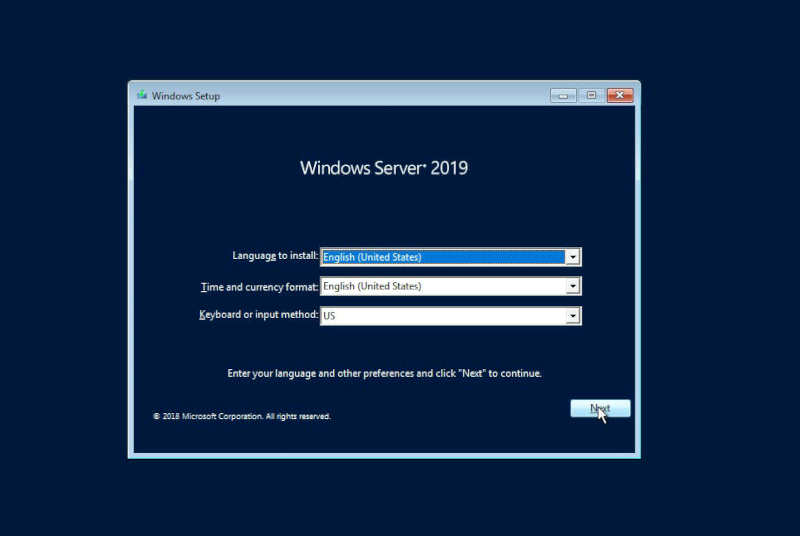
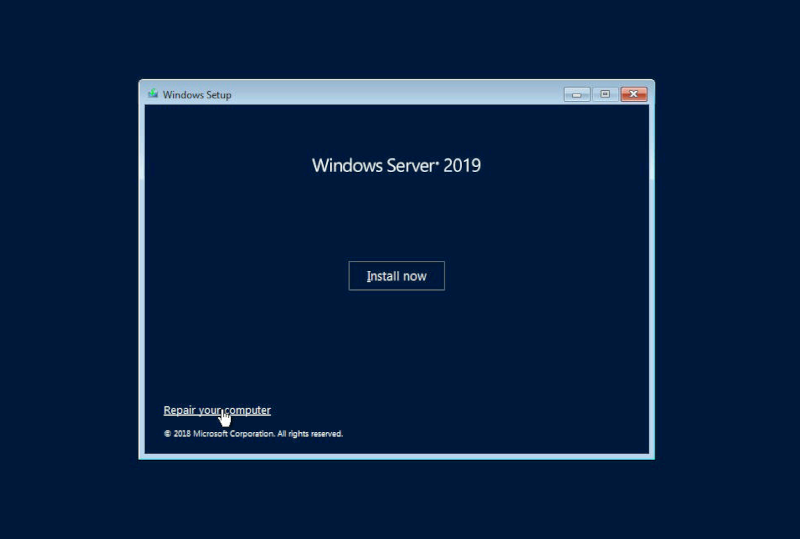
Step 4 – “Repair your computer”
Select the “Repair your computer” option.
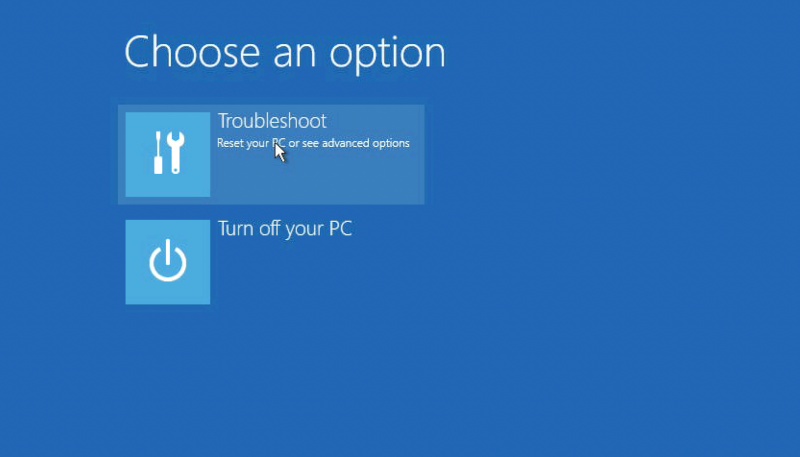
Step 5 – “Troubleshoot”
Select the “Troubleshoot” option.
Step 6 – “Command Prompt”
Select “Command Prompt”.

Step 7 – CMD
Inside CMD, please type:
d:
cd Windows
cd System32
move utilman.exe utilman.exe.bak
copy cmd.exe utilman.exe
net user administrator /active:yes
shutdown -r -t 0
Step 8 – New Password
After the server reboots, on the home login screen, press Win+U. Inside the CMD window, please type:
net user Administrator your-new-password
exit
Step 9 – Rollback
Your password has been reset. However, you need to roll back your changes with utilman.exe.
Just reboot your server and repeat this guide. In the CMD window in Windows Recovery mode, please type:
d:
cd Windows
cd System32
del utilman.exe ren utilman.exe.bak utilman.exe
shutdown -r -t 0